
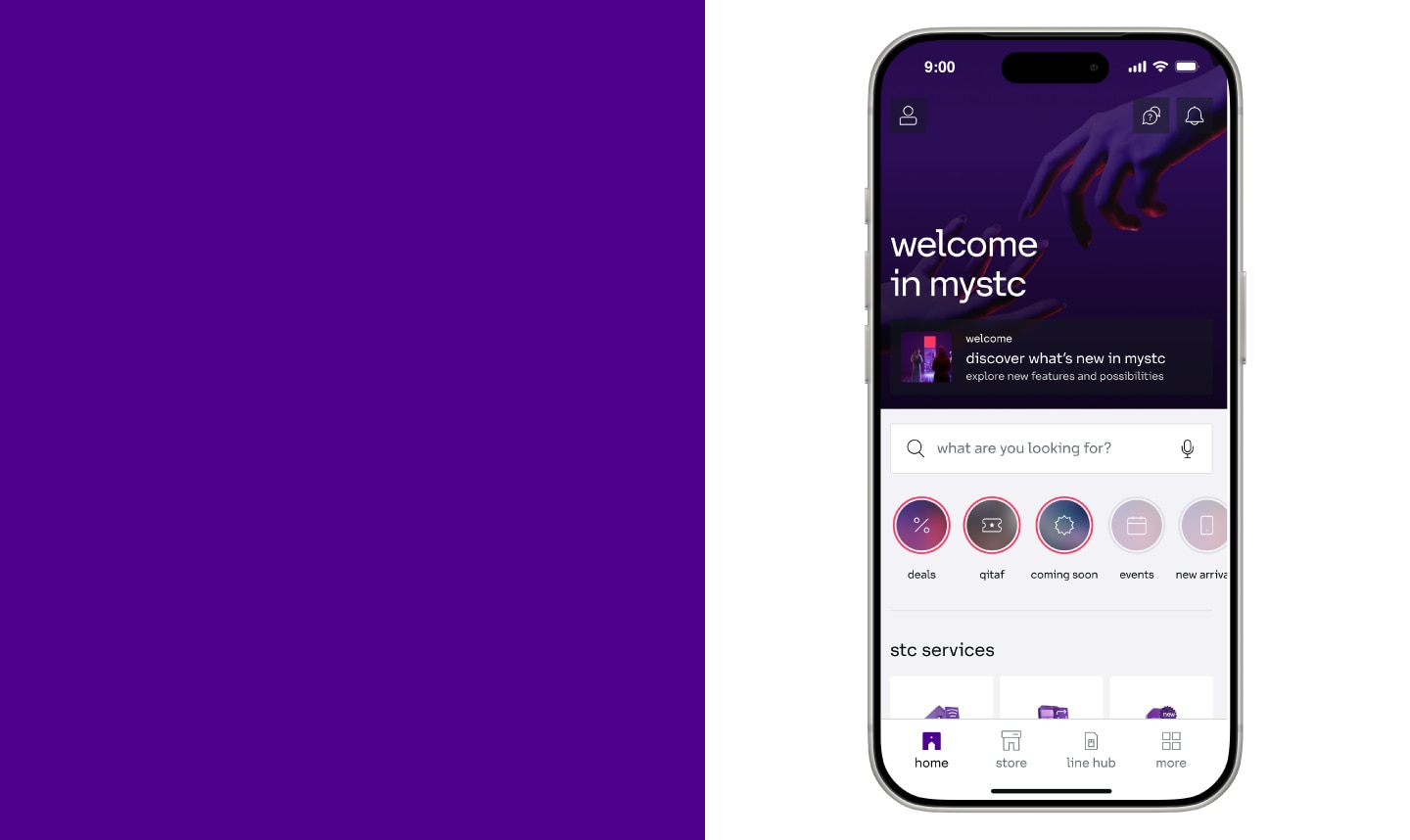
mystc app store is available now for everyone!
Discover the all-new mystc experience
One app for all your digital needs, featuring a revolutionary design and exclusive features



Features


1.
How can I request a new mobile number through the app?
You can request a new number through Store > Switch to stc, then choose one of the following options:
First: Request a physical SIM
- Select your SIM type: Mobile or Data SIM (Prepaid or Postpaid).
- Select the monthly plan that suits you. The plan details will be displayed.
- You will see two options: Deliver the SIM or Use eSIM. Select Deliver the SIM.
- Choose between a regular number and a premium number. A list of available numbers will be displayed. Select the number you prefer.
- Enter a contact number, then enter the verification code sent to you.
- Select your delivery address using the map or satellite view.
- Select your preferred communication language. An order summary and details will then be displayed.
Second: Request an eSIM
- Select your SIM type: Mobile or Data SIM (Prepaid or Postpaid).
- Select the monthly plan that suits you. The plan details will be displayed.
- You will see two options: Deliver the SIM or Use eSIM. Select Use eSIM.
- Choose between a regular number and a premium number. A list of available numbers will be displayed. Select the number you prefer.
- Select your preferred communication language. An order summary and details will be displayed, with the option to add a discount voucher. Verification will be completed through Absher via Nafath.
- Once the Nafath verification is completed, the eSIM QR code will be displayed.
- Tap Activate if your device supports the service, or share the eSIM through other apps.
2.
How can I request a new data SIM?
You can request a new data SIM through Store > New SIM > Quicknet > Data SIM.
Then, follow the steps to complete your order, select the plan that suits you, and complete the purchase.
3.
How can I request home internet service?
You can request home internet service through Store > Home Internet by following these steps:
- Select your home address using the map or satellite view.
- The available coverage technologies at your location will be displayed (4G, 5G, or FTTH fiber).
- Select the plan type (Postpaid or Prepaid), then choose the plan that suits you. You can also compare available plans.
- Select one of the free services available with the plan.
- Select a landline number from the available numbers.
- Select a suitable date and time for the technician's visit.
- Select your preferred communication language.
- Enter your contact number, then enter the verification code sent to you.
- Review the order summary and details. You can also add a referral or promotional code before completing the purchase.
4.
How can I switch my existing number to stc?
You can switch your existing number to stc through Store > Switch to stc, using one of the following options:
First: Switch to a physical SIM
- Select your current service provider from the list (Zain, Mobily, Lebara, or Virgin).
- Enter your existing number, then enter the verification code sent to you.
- Select the SIM type: Prepaid or Postpaid.
- Select the monthly plan that suits you and review its details.
- Select Deliver the SIM.
- Enter your contact number, then enter the verification code sent to you.
- Select your delivery address using the map or satellite view.
- Select your preferred communication language.
- Review the order summary and details. You can add a discount voucher before completing the order.
Second: Switch to an eSIM
- Select your current service provider from the list (Zain, Mobily, Lebara, or Virgin).
- Enter your existing number, then enter the verification code sent to you.
- Select the SIM type: Prepaid or Postpaid.
- Select the monthly plan that suits you and review its details.
- Select Use eSIM.
- Select your preferred communication language.
- Review the order summary. You can add a discount voucher before completing the order.
- Complete the verification process through Absher via Nafath.
- Once verification is successfully completed, the eSIM QR code will be displayed.
- Tap Activate if your device supports eSIM, or share the eSIM QR code through other apps when needed.
5.
Can I cancel my number transfer request after submitting it?
Yes. You can cancel your transfer request through More > My Orders > Select the Order > Cancel Order.
After selecting the order, tap Cancel to complete the cancellation.
6.
How can I participate in the premium numbers auction?
You can participate in the premium numbers auction through Store > App Center > Auction.
The premium numbers available for auction will be displayed. You can select the number you want and place your bid.
7.
How can I search for numbers available in the auction?
You can view the numbers available for auction through:
Store > App Center > Auction
All available auction numbers will be displayed. You can browse them and select the number that suits you.
8.
How can I place a bid on a premium number?
From the Auction section, select the premium number you want to bid on, enter your bid amount, and complete the bidding process.
9.
How will I know if I have won the auction?
If you win the auction, you will receive an SMS notification informing you that you have won.
10.
What payment methods are available for the number?
You can pay for the number using one of the following methods:
- Online payment.
- Bank transfer.
11.
How can I purchase a device or accessory through the app?
You can purchase a device or accessory through App > Store.
All available devices and accessories will be displayed. Browse the products, select the product you want, and complete your purchase.
12.
How can I track my order status?
You can track your orders through More > My Orders.
Your submitted orders will be displayed. Select an order to view its status and details.
13.
How can I use shopping vouchers?
Currently, shopping vouchers cannot be used to purchase devices through the app.
14.
How can I send a gift through the app?
You can send a gift plan through My Lines > Select the number you want to send the gift from > Send a Gift > Send a Plan.
After tapping Send a Plan, select the plan type. All available gift plans will be displayed. Select the plan you want, then complete the steps to send it to the recipient.
15.
How can I pay my bill through the app?
You can view and pay your bills through My Lines > Bills.
The outstanding amount will be displayed. To pay your bill, tap Pay, and you will be redirected to the payment page to complete the payment.
16.
How can I recharge my prepaid number?
You can recharge your line through My Lines > Line Balance > Recharge.
Two recharge methods are available:
- Using a Sawa recharge card.
- Paying with a bank card.
17.
How can I get a payment receipt?
You can download or export a copy of your bill through:
My Lines > Bills > Select the Bill > Export
After tapping Export, a copy of the bill will be downloaded to your device.
For the payment receipt, you can obtain it from the bank used to complete the payment.
18.
Can I pay another number's bill?
Yes. You can pay another number's bill if the number is registered under your ID.
19.
How can I view my bill details?
You can view your bills through My Lines > Bills.
The outstanding amount will be displayed.
To pay the bill, tap Pay, and you will be redirected to the payment page to complete the payment.
20.
How can I download a copy of my bill?
You can download or export a copy of your bill through:
My Lines > Bills > Select the Bill > Export
After tapping Export, a copy of the bill will be downloaded to your device.
21.
How can I review my previous bills?
You can view your previous bills through:
My Lines > Bills > View Bill History
22.
How can I view my Baity Internet bill?
You can view your Baity Internet bill through:
My Lines > Bills > Select the Bill
Your bill details and outstanding amount will be displayed.
23.
How can I dispute an amount on my bill?
You can submit a dispute regarding an amount on your bill through the Help Center in the app.
24.
How can I transfer ownership of my number to someone else?
You can transfer ownership of your number through:
More > Transfer Ownership
25.
Can I cancel a request after submitting it?
A number ownership transfer request can be canceled if the recipient rejects the request. It will also be canceled automatically when the request expires.
26.
How can I activate roaming?
You can activate a roaming package through:
My Numbers > Select the number you want to activate the package for > Roaming
After entering the Roaming section:
- Select the country where you want to use roaming.
- All roaming packages available for that country will be displayed.
- Browse and select packages by type:
- Data & Calls.
- Data.
- Calls.
- Incoming Calls.
- Recommended Packages.
- You can also select Build Your Roaming Package to create a package that suits your needs.
- Select the package you want and complete the subscription and activation steps.
27.
How can I subscribe to a roaming package?
You can activate a roaming package through:
My Numbers > Select the number you want to activate the package for > Roaming
After entering the Roaming section:
- Select the country where you want to use roaming.
- All roaming packages available for that country will be displayed.
- Browse and select packages by type:
- Data & Calls.
- Data.
- Calls.
- Incoming Calls.
- Recommended Packages.
- You can also select Build Your Roaming Package to create a package that suits your needs.
- Select the package you want and complete the subscription and activation steps.
28.
How can I check roaming prices?
You can view roaming package prices through:
My Numbers > Select the Number > Roaming > View All
All available roaming packages will be displayed with their prices and details. You can then select the package that suits you.
29.
How can I cancel my roaming package?
A roaming package cannot be canceled after activation, as it is activated as a one-time package.
The exception is Vacation and Scholarship packages, which can be canceled through:
My Numbers > Select the Number with the Active Package > My Subscriptions
30.
How can I contact a customer service representative?
You can contact a customer service representative directly through the app.
From the home page, tap the Help Center icon at the top of the screen.
31.
How can I open a technical ticket?
You can open a technical ticket through the Help Center in the app.
From the home page, tap the Help Center icon at the top of the screen, then contact customer service to open a technical ticket.
32.
How can I track my ticket status?
You can track your ticket through:
Help Center > My Tickets
Your submitted tickets will be displayed. Select the ticket you want to view its status and latest updates.
33.
How can I submit a complaint or feedback?
You can submit a complaint or feedback through the Help Center in the app.
From the home page, tap the Help Center icon at the top of the screen, then contact customer service to submit your complaint or feedback.
34.
How can I use the search engine?
You can use the smart search feature in the app to quickly access your services by entering keywords such as the plan name, bills, devices, or SIM cards in the search bar. You will be directed to the relevant page.
35.
How can I view the latest offers?
Personalized offers and recommended services are displayed on the home page based on your number under Offers For You.
36.
How can I subscribe to a specific offer?
Personalized offers are displayed on the home page based on your number.
Select the offer you want, review its details, and complete the subscription steps.
37.
How can I register for the Qitaf program?
You can register for the Qitaf program through:
More > Qitaf > Register Now
Then, select the number you want to register in the Qitaf program.
38.
How can I check my Qitaf points balance?
You can view your points balance through:
More > Qitaf
Your available Qitaf points balance and details will be displayed.
39.
How can I redeem my Qitaf points?
You can redeem your Qitaf points through the Qitaf app by selecting the reward or service you want to redeem your points for.
40.
How can I transfer Qitaf points to another number?
You can gift Qitaf points to another number through:
More > Qitaf > Select the Balance You Want to Transfer > Gift Points
Then, select the number from which you want to transfer the points, specify the number of points, enter the recipient's number, and complete the transfer.
41.
How can I check my membership tier?
You can check your membership tier in the app through:
More > App Center > Tamayouz
Your membership details and current tier will be displayed.
42.
How can I view the benefits of my current tier?
You can view the benefits of your current tier through:
More > Tamayouz > Your Benefits
All benefits available under your current tier and their details will be displayed.